
The spec arrives last
The language work on a subtitle file can be finished and the file still not be deliverable. The last step is matching the client’s technical specification, and that specification is rarely the same twice. One client delivers at 25 fps and another at 23.976. One wants SRT, another wants WebVTT for a web player, a broadcaster asks for EBU STL. Line length, the number of lines and reading speed all change with the client, the platform and the audience.
In the old way of working, this last mile meant a separate set of tools. A frame-rate converter someone downloaded years ago, a script a colleague once wrote, a desktop editor for format conversion, and then manual fixes for whatever the conversion broke. Each tool meant an export, a new file name and another chance to deliver the wrong copy. The language specialist had finished hours ago; the delivery still took an afternoon.
The argument of this post is that delivery specs are predictable work, and predictable work belongs inside the same project as the subtitles, not in a separate tool chain bolted on at the end.

- 01 / RATEConvert
- 02 / LIMITSCheck
- 03 / LINESRe-split
- 04 / FORMATExport
Frame rate is a timing problem
A subtitle file made for one frame rate drifts when the video is delivered at another. The words are right and the timing is not, and the error grows as the file goes on. Fixing it by hand means shifting every subtitle, which is exactly the kind of work nobody should be doing one line at a time.
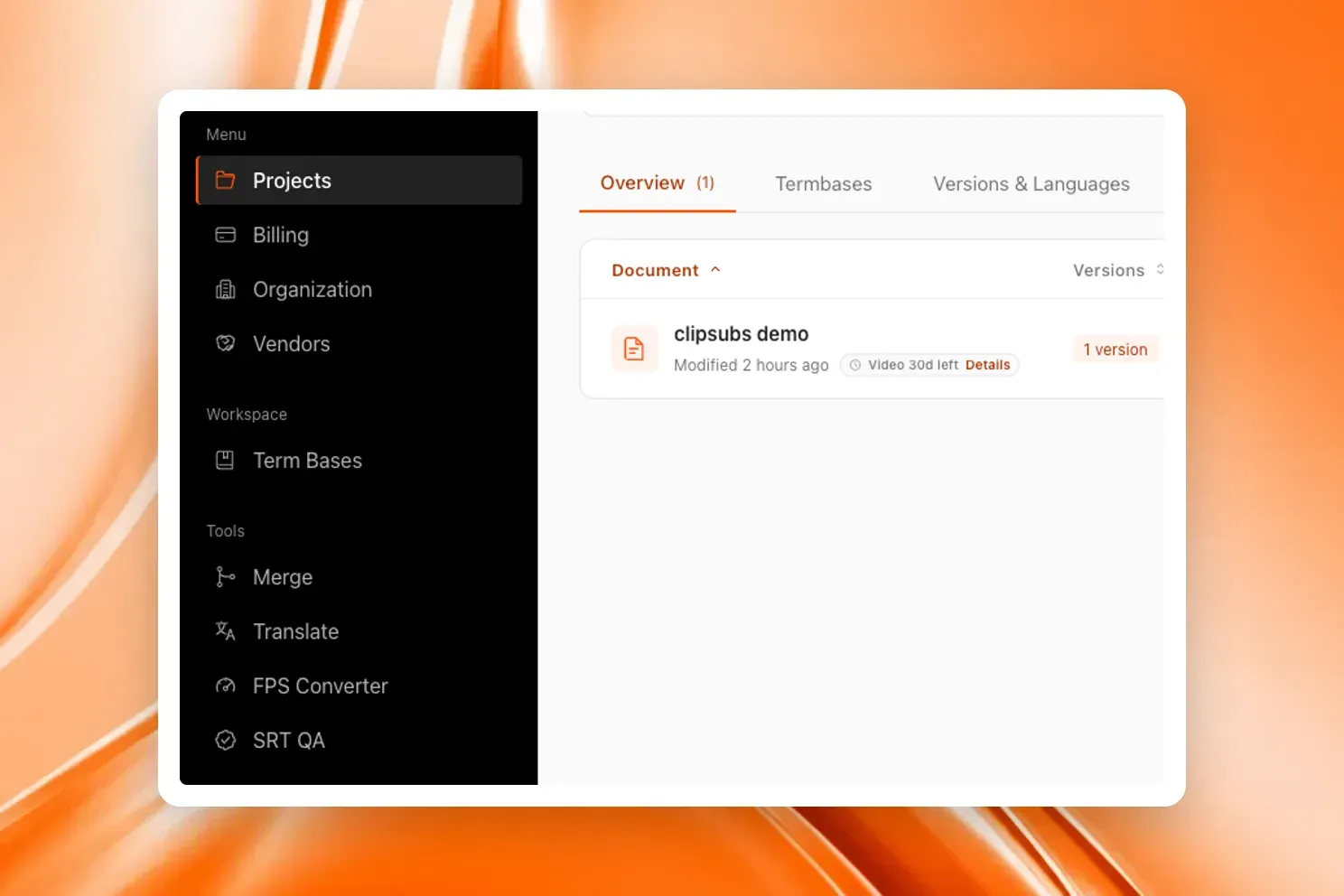
FPS Converter adjusts subtitle timing between 23.976, 24, 25, 29.97 and 30 fps, or a custom rate if the brief asks for something else. It takes up to 20 subtitle files in one batch and returns the converted results together as a ZIP, so a set of episodes can be converted in one pass. It changes the subtitle timing only; it does not change the video’s frame rate.
Convert, then check. Open a converted file against the target video and play through the start, the middle and the end. Because frame-rate drift grows through a file, the end is where a wrong conversion shows most clearly. Do the conversion before the final QC pass, not after it. Changing the frame rate moves every timestamp in the file, so durations and reading speeds shift slightly, and checks that passed beforehand may no longer hold.
“Most delivery problems are not hard. They are just easy to get wrong when they happen in a different tool.”
Lauris Zemturis, founder of clipsubs
Join the parts into one track
Long-form work is often split into parts: an episode cut into reels, an event recorded as separate sessions, a documentary divided between two specialists. At delivery, the client wants one file. Merging by hand means offsetting every subtitle in the second part by the length of the first, and then the third part by both.
SRT Merge combines SRT files from several parts of a longer video into one subtitle timeline and applies the timing offsets automatically. It joins subtitle files only; the video itself stays in your video workflow. Review the merged track against the final assembled video, with particular attention to the transitions between parts, where a short gap or overlap is most likely.
Turn the brief into QC thresholds
Most of a delivery spec is a set of numbers: characters per line, lines per subtitle, reading speed, minimum and maximum duration. Checking those numbers by eye is slow and unreliable. They are what QC is for.
QC in clipsubs has eight adjustable checks: short and long duration, total and per-line length, line count, reading speed, early starts and formatting. It also detects overlaps. The defaults are broadcast-style, 37 characters per line, 2 lines and 20 characters per second, and you change them to match the brief. QC settings are saved for each file, so two clients with different rules can each keep their own thresholds without anyone resetting them between jobs.
Work through the flags, jump to each issue and use one-click auto-fix where it is appropriate. The flags focus attention; the editor still decides. QC does not approve a delivery on its own, and meaning, accessibility and the client’s specification still need a person.
For a batch arriving from several specialists, bulk SRT QA checks and fixes up to 30 files at once, which gives the whole batch a technical pass before it moves on.
Before you start the last mile
- Write down the frame rate, format, line limits and reading speed from the brief.
- Set the QC thresholds on each file before anyone runs checks.
- Convert frame rates as a batch, then check sync at the end of a file.
- Merge parts before the final QC pass, not after it.
Re-split when the line rules change
Sometimes the spec changes after the language work is done. A track prepared as two-line subtitles has to go to a platform that wants a single line, or a younger audience calls for a slower reading speed. The text is fine. The segmentation is wrong for the new destination.
Re-splitting by hand means rebuilding nearly every subtitle. Re-split does it from the text you already have. It rebuilds the track by sentence or into 1, 2 or 3 lines, within the character, reading-speed and duration limits you set. It does not transcribe again, and it is free. The original version is kept, so you can compare the new structure with the old one before choosing which to deliver.
After a re-split, run QC again with the new thresholds and read a sample against the picture. Line breaks that satisfy the numbers can still split a phrase in an awkward place, and that remains a judgement for the editor.
Export the format the brief asks for
When the version is ready, export it as SRT, WebVTT or EBU STL. Export is free, and it comes from the version you checked, not from a copy someone saved earlier. Bulk tools return their results as ZIP files, which makes a batch delivery easier to package.
It is worth being clear about what export does not do. clipsubs does not burn subtitles into video; the subtitle file goes to whoever handles the picture. Import is SRT only, so a file a client sends in another format needs converting before it enters the project.
Re-deliveries are common, and they are where the old way hurt most. Videos in clipsubs are deleted after 30 days, but subtitle versions are kept, so when a client asks next month for the same episode in WebVTT instead of SRT, the export starts from the version that was checked, not from whichever file someone can still find.
“The last mile should be a checklist, not a project of its own.”
Lauris Zemturis, founder of clipsubs
What the last mile costs
Most of this work does not use AI hours. Editing, QC in the editor, Re-split and export are free. FPS Converter, SRT Merge and bulk SRT QA are utility tools and use 5 minutes per file from your hours balance, so a batch of ten files through FPS Converter uses 50 minutes. Utility tools come with the paid plans, alongside the monthly AI hours.
The larger saving is time and certainty. When conversion, merging, checking and export happen in the project, the delivery comes from the version that was reviewed, and nobody has to wonder which converted copy went to the client.
A delivery spec is a list of numbers. Give each number a place in the project.
Take the next spec that arrives and write it out as numbers: frame rate, format, line limits, reading speed, duration. Every one of those has a setting in clipsubs, and once it is set on the file, the last mile is a short walk rather than an afternoon.