PRODUCT / AI RESYNC AND RE-SPLIT
Repair subtitle timing. Reshape every line.
Turn an existing subtitle file into a better starting point for delivery. Align the track to the audio or rebuild its line structure using your limits, while retaining the original version.

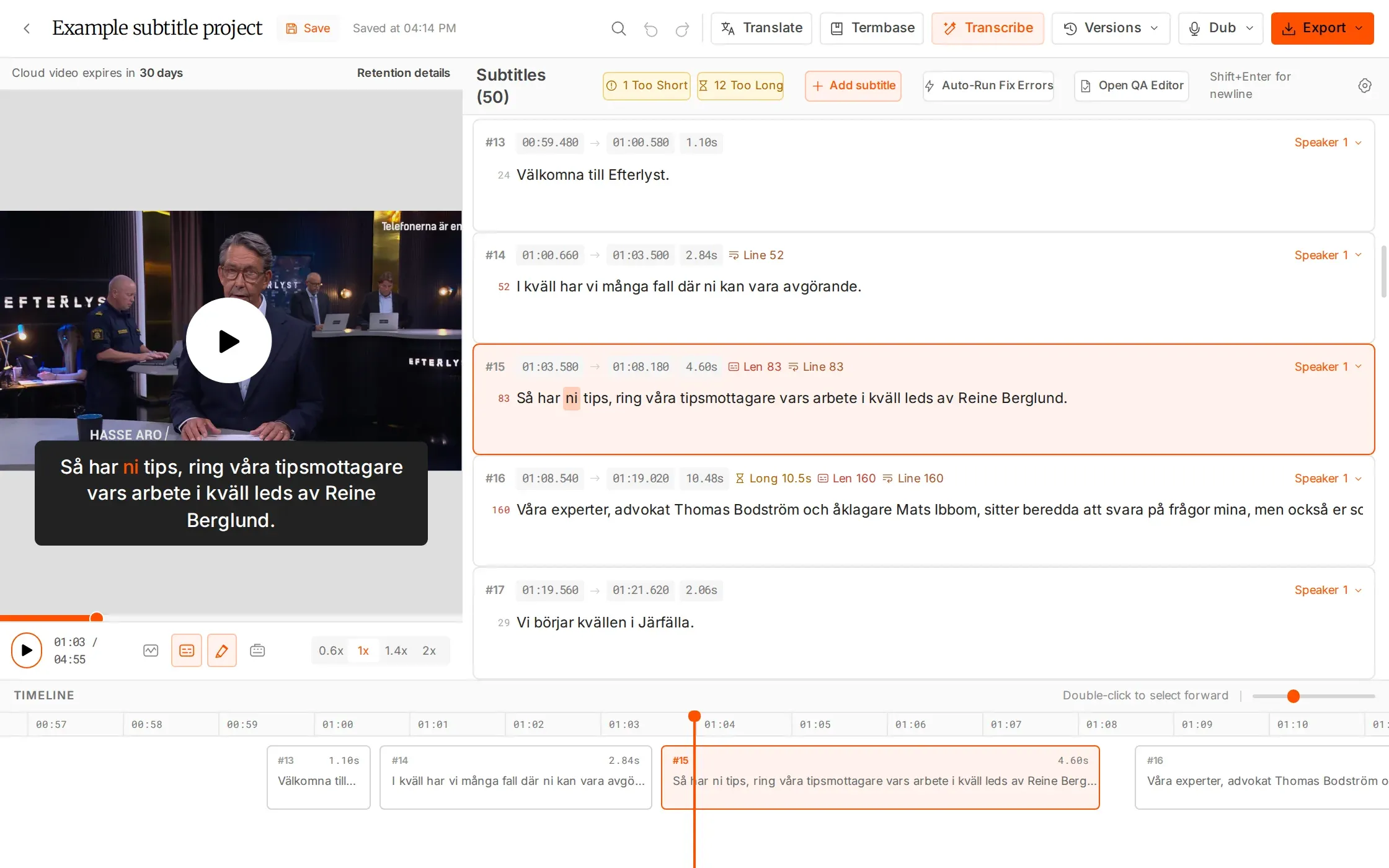
A fresh pass without a fresh start.
Repair alignment. Restore a readable structure.
Resync to the audio
AI Resync retimes an existing SRT, adds missed speech and removes subtitles that do not match the audio.
Rebuild the line structure
Re-split by sentence or into 1, 2 or 3 lines, using your character, reading-speed and duration limits.
Keep the original
The source version is retained. Review the new timing and structure before making it the delivery version.
WHAT YOU CAN DO
Choose the operation the subtitle file needs.
Align an existing SRT to the audio
AI Resync retimes the subtitle track to match the source. It can also add missed speech and remove subtitles that do not match the audio, so the result needs a language and timing review before delivery.
Rebuild lines for the delivery brief
Re-split by sentence or into one, two or three lines using the limits you set. Use it when the words are available but the segmentation needs to follow a different subtitle structure.
Set the limits before processing
Choose character, reading-speed and duration limits for Re-split. The operation uses those settings to reshape the track, giving the reviewer a structured result to check against the video and the client’s requirements.
Compare the new result with the original
Keep the source version available while you inspect the processed version. Check changed wording, subtitle boundaries and line structure, then use QC and manual edits to prepare the version you want to deliver.
HOW IT WORKS
Repair the track. Keep a way back.
Choose the operation the file needs, then compare and review the new version.
Start from your subtitle file
Import an SRT or choose an existing version in the project.
Resync or re-split
Align to the audio with AI Resync, or rebuild the lines using your chosen limits.
Review the new version
Check the result against the video and run QC. The original version remains available.
IN YOUR WORKFLOW
Reuse the subtitle work you already have.
The SRT exists, but sync has drifted
Import the file and run AI Resync against the corresponding media. Review the timing and any speech that was added or removed, then refine the affected passages in the editor.
WHY IT HELPS
Create a new alignment pass while keeping the original track for comparison.
The file needs different line limits
Use Re-split to rebuild the subtitle structure around the required line count, characters, reading speed and duration. Review the new breaks and run QC before export.
WHY IT HELPS
Adapt the existing text to a new delivery brief without rebuilding every line manually.
AI Resync uses 0.3× source duration: 60 minutes of media uses 18 AI minutes. Re-split, manual editing, QC and export are free.
FAQS
Have questions? Find answers.
Have more questions?
Reach out to our friendly support team
What does AI Resync change?
It retimes an existing SRT to the audio, adds missed speech and removes subtitles that do not match the audio.
What does Re-split change?
It rebuilds lines by sentence or into 1, 2 or 3 lines using your limits for characters, reading speed and duration.
Will I lose the original version?
No. The original is kept so you can compare it with the new result.
Can I choose my own limits?
Yes. Re-split uses the character, reading-speed and duration limits you set.
Is AI Resync free?
No. AI Resync uses hours at 0.3× the video duration. A 60-minute video uses 18 minutes.
Does Re-split use hours?
No. Re-split is free, as are editing, QC and export.
Bring an existing track back into shape.
Re-split is free. AI Resync uses 0.3× the video duration in AI hours.