
Good text, wrong timing
A lot of subtitle work is not new work. It is an existing track that no longer fits. A back catalogue subtitled years ago against a different master. An episode re-cut for a new platform, with a scene shortened and a sequence added. A file from a previous vendor that was never quite in sync. Or a track that is perfectly timed but built for a spec the new client does not accept.
In all of these cases the words are mostly right. Someone already did the language work, and it would be wasteful to do it again. What is wrong is the timing, the segmentation, or both. The argument of this post is that those are separate problems with separate fixes, and treating them separately is what makes old subtitle work reusable.

- 01 / IMPORTLoad
- 02 / TIMINGResync
- 03 / LINESRe-split
- 04 / CHECKSDeliver
Why manual retiming does not scale
The traditional fix was manual retiming. An editor opened the file in a desktop subtitle editor next to the video and worked through it line by line, moving in and out points until speech and text lined up again. For a constant offset that is quick. For drift, where the error grows through the file, or for a re-cut, where some scenes moved and some disappeared, it is slow and tiring work, and it is easy to miss a section.
Re-segmenting was worse. Changing a track from two-line subtitles to one line, or to a slower reading speed, meant rebuilding almost every subtitle by hand. Few teams had the time to do it properly; most did the minimum that passed the client’s checks.
In our own back-catalogue work at Linearis, a one-hour episode used to take 4 to 5 hours of specialist time with the old tool chain, and repairing existing tracks was part of that. With clipsubs it now takes up to about 1.5 hours.5 hours. That is our experience on our own catalogue, not a benchmark, but it is why we built these two tools the way we did.
“Old subtitle files are an asset. The problem was always the cost of making them fit again.”
Lauris Zemturis, founder of clipsubs
Retime the track with AI Resync
AI Resync retimes an existing subtitle track to the audio. Start by importing the SRT, as a new file or as an additional version of a file already in the project, alongside the media it now has to match. Then run Resync against that media.
Resync does more than shift times. It can add subtitles for speech that was missed in the original track and remove subtitles that no longer match any speech. That is what makes it useful for re-cuts. If a scene was removed, the lines that belonged to it are dropped rather than left floating over the wrong picture, and if dialogue was added, it gets a subtitle you can review.
Resync uses AI hours at 0.3× the duration of the media, so a 60-minute episode uses 18 minutes. Re-alignment runs on OpenAI and Google Gemini models, and customer content is not used to train the platform’s own AI models.
For a simple constant offset, where every subtitle is early or late by the same amount, you may not need Resync at all. Shifting several subtitles together in the editor is free and takes a minute.
Review what Resync changed
The result is a new version. The original track is kept, so you can compare the two and see what moved. This matters, because a version that can add and remove lines is a version that needs a person to look at it.
Review in three passes. First, play through any section where lines were added and check the new text against what is said; it is a draft, and names in particular need checking. Second, look at the places where lines were removed and confirm that the speech really is gone from the new cut. Third, spot-check the timing at the start, middle and end of the file. The waveform and playback from 0.2× to 2× make it practical to check a difficult passage closely. If a short stretch of speech is still missing, Transcribe gap fills just the empty space between two subtitles rather than starting again.
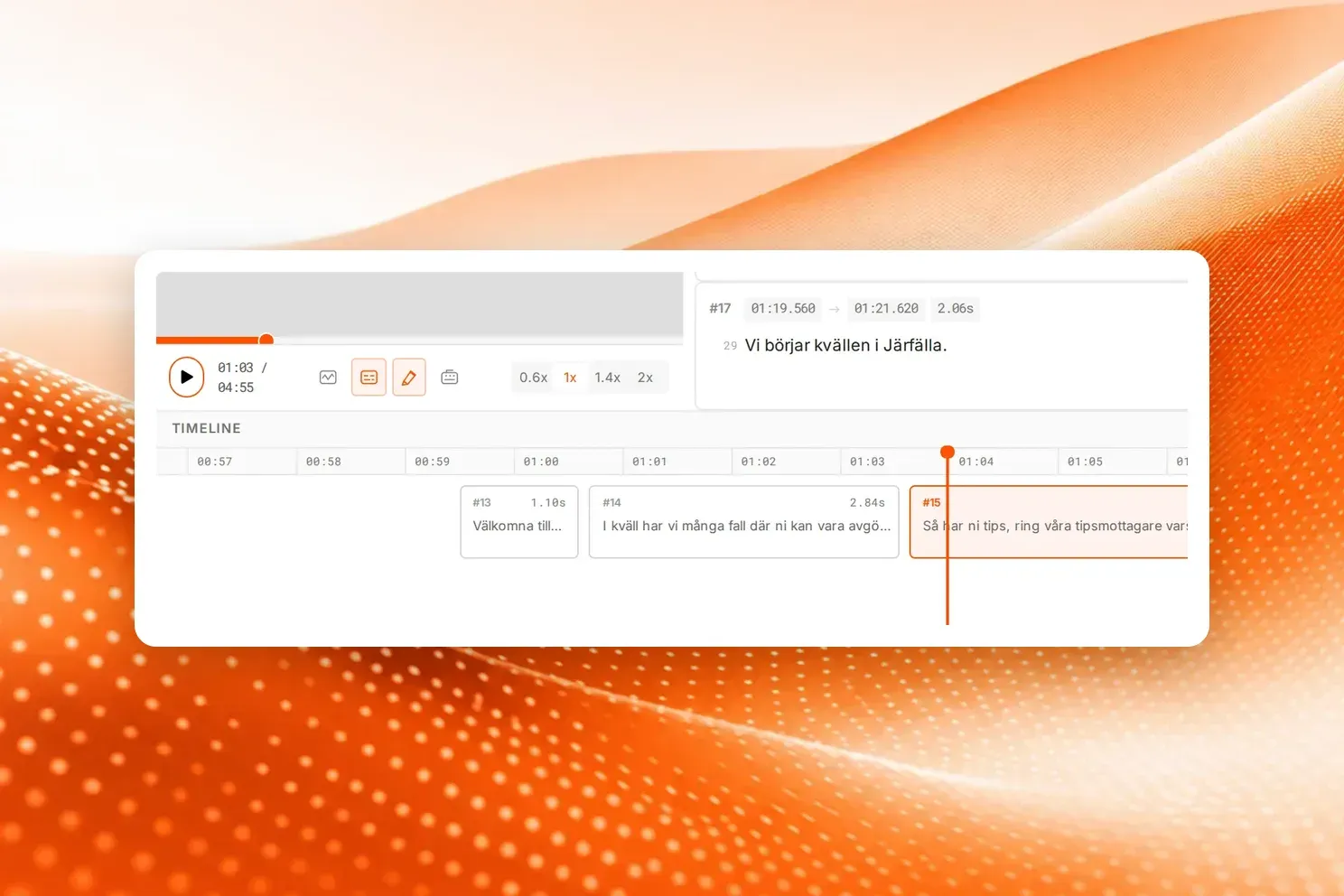
For a back catalogue, work in groups of episodes that share the same kind of master. Resync each file, review the first one in full, and once you have seen the pattern of changes, review the rest with your attention on the passages where lines were added or removed. The first file teaches you where the old track was weakest, and that knowledge makes every following review faster.
Before you resync a back catalogue
- Pair every SRT with the exact master it now has to fit.
- Run Resync on one episode first and review it fully.
- Budget 0.3× the media duration in AI hours for each file.
- Keep the original version until the new one has passed review.
Rebuild the lines with Re-split
When the timing is right but the segmentation is wrong for the brief, Re-split is the tool. It rebuilds the track by sentence or into 1, 2 or 3 lines, within the character, reading-speed and duration limits you set. It works from the existing text and does not transcribe again. Re-split is free.
The typical case is a new client spec. The track was built for two lines and the new platform wants one, or the audience calls for a slower reading speed. Set the new limits, run Re-split and you have a new version built to them, with the original kept for comparison. After a Resync, it can also tidy segmentation that the old track carried over.
Read through the result against the picture. Re-split respects the numbers, but a line break that fits the limits can still split a phrase awkwardly, and the editor fixes those by hand.
“Resync answers when a subtitle appears. Re-split answers how much of it is on screen. Keeping them apart is what makes both reliable.”
Lauris Zemturis, founder of clipsubs
Check again, then deliver
Every repaired track goes through QC before it leaves. QC has eight adjustable checks covering short and long duration, total and per-line length, line count, reading speed, early starts and formatting, and it detects overlaps. The broadcast-style defaults are 37 characters per line, 2 lines and 20 characters per second. Set them to the brief, and the settings are saved for that file. Jump through the flags, use one-click auto-fix where it is appropriate and review what it changed.
For a batch of repaired files, bulk SRT QA checks and fixes up to 30 at once. Then export the version as SRT, WebVTT or EBU STL. Editing, QC and export are free, like Re-split.
Repair the timing, then the structure, then check both against the picture.
When to use which
Use AI Resync when the text is right and the timing is not: drift, a new master, a re-cut. Use Re-split when the timing is right and the structure is not: a new line count, a new reading speed, a new client. Use both, in that order, when an old track meets a new cut and a new spec at the same time. Resync first, so the subtitles sit on the right speech, then Re-split, so they are shaped for the delivery.
Whichever you use, the original version stays in the project, grouped by language with the new one marked as the latest. If a reviewer disagrees with a change, the earlier timing is in the Versions drawer, not in an email from last year. Take one drifted file from your own archive, run it through both passes and compare the result with the original. That comparison will tell you more about your back catalogue than any estimate.