
Viewers need to know who is speaking
A subtitle track for UK television is not just a transcript on screen. A viewer who relies on subtitles needs to know who is speaking, and what can be heard besides the dialogue. Without that, a conversation between three people becomes a column of lines with no owner, and a door slamming off screen simply does not exist.
The long-standing UK convention handles this with colour. Each main speaker is given a distinct colour, typically white, yellow, cyan and green, and sound effects are described in labels, often in brackets, in the form the broadcaster’s style guide sets. The practice follows Ofcom’s guidance on access services and the broadcasters’ own subtitling style guides, which define the details: which colour goes to whom, how a speaker off screen is shown, how sounds and music are written.
For a vendor, the point is that these are not stylistic preferences. They are part of the specification the track is delivered against, and they have to be applied consistently from the first episode of a series to the last. A viewer who has learned that the presenter is yellow should not find her in cyan three episodes later.

- 01 / SPEAKERSLabel
- 02 / SOUNDSTag
- 03 / FORMATCheck
- 04 / BROADCASTExport
A condition of broadcast, not a nicety
UK broadcasters carry subtitling quotas under Ofcom’s Code on Television Access Services. Failing to meet access-service obligations can lead to regulatory action. That changes what a subtitle delivery is. A track that does not identify speakers, or that the broadcaster cannot accept into its chain, is not a slightly weaker deliverable. It is a file the broadcaster’s own style guide does not let it accept, in a part of the schedule where it is held to an obligation.
So the vendor’s job is to deliver a track that is correct the first time, against the broadcaster’s own style guide, in the format their delivery chain expects. Rejections cost a vendor twice: the rework itself, and the trust of a client who now has to check every file more closely.
“Speaker identification is part of the spec. Treat it like timing, not like decoration.”
Lauris Zemturis, founder of clipsubs
What clipsubs does today, and what it does not
I want to be precise here, because this is an area where tools are easy to oversell.
clipsubs does not assign speaker colours, and it does not yet detect speakers or sound events for subtitles on its own. Automatic sound tags, automatic SDH speaker labels and new subtitles on speaker changes are coming soon, and we describe them that way on our own pages.
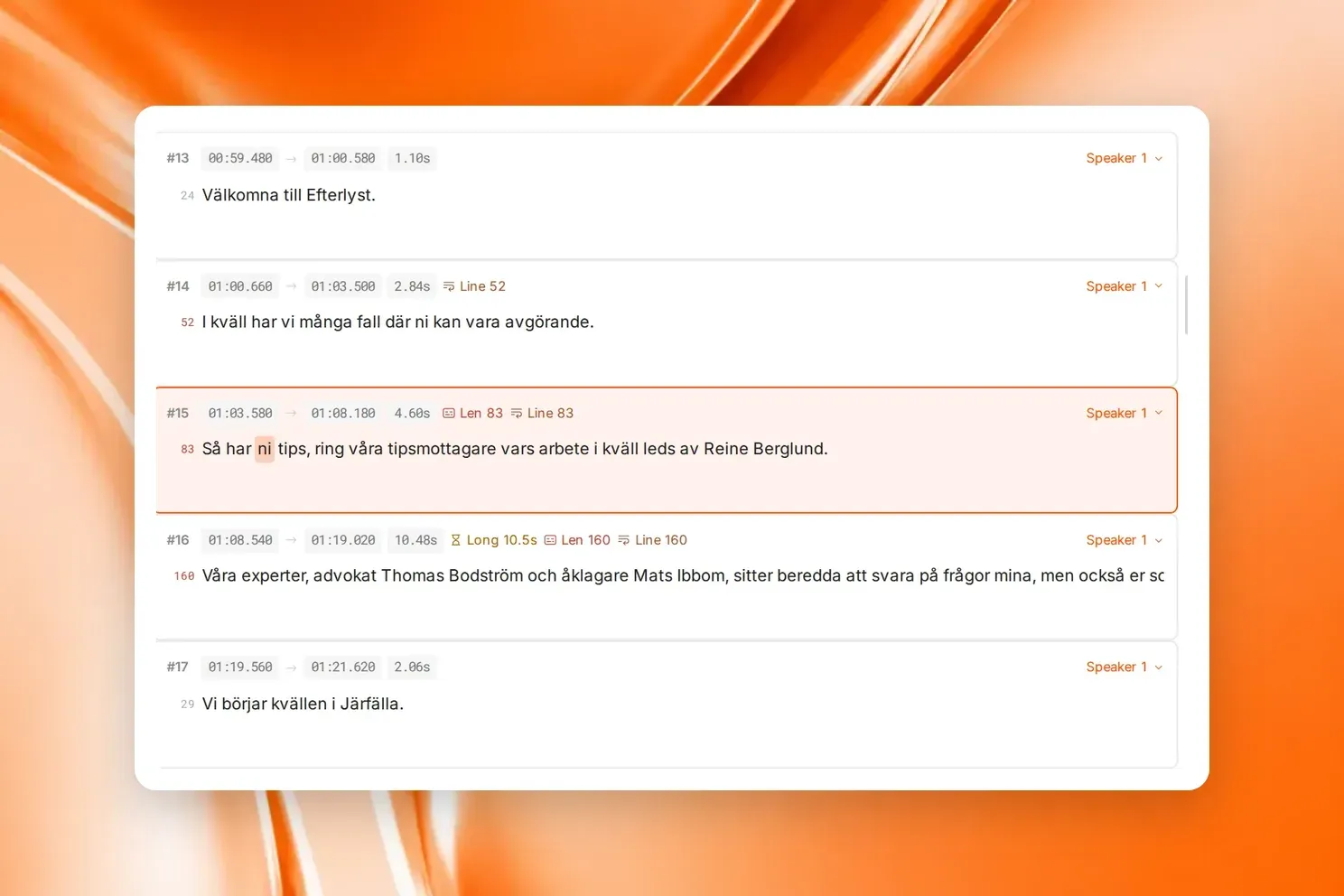
What it does today is support the specialist who makes those decisions. You can assign a speaker to any subtitle manually in the editor. You can write and edit bracketed sound labels, and change them across the whole track with find and replace in its “find between” mode. The Formatting check flags stray brackets and punctuation. QC starts from broadcast-style defaults that you adjust to the broadcaster’s spec, and the finished track can be exported as EBU STL for broadcast delivery, as well as SRT or WebVTT.
Preparing the track efficiently
The most efficient way we have found to prepare a UK track is to separate the passes, so that each one gets the specialist’s full attention.
Start with a good transcript. Upload the episode and, before transcription, add the cast, presenters, places and specialist terms to a project termbase, up to 100 terms per list. A draft that already spells the names correctly frees the specialist to think about who says each line rather than how to spell it. Transcription supports 99 languages and uses AI hours at 1× the source duration; the draft arrives with word-level timing, timing cleanup and smart line breaking.
Then make the speaker pass. Work through the episode against the picture and assign a speaker to each subtitle in the editor. Where two speakers share a subtitle, follow the style guide on how that is shown, and split the subtitle where the guide asks for one speaker per subtitle. The label is what clipsubs holds. Decide each speaker’s colour from the broadcaster’s style guide, apply it in your delivery chain, and keep the mapping for the series written down, so a different specialist on the next episode makes the same choices.
Then make the sound pass. Add the relevant sound labels in brackets, in the wording the style guide uses. Relevance is a judgement: a sound belongs in the track when it carries meaning a viewer would otherwise miss. When the client changes the wording for a recurring label, “find between” mode lets you change every instance at once rather than hunting through the episode.
Checking it against the spec
Once the labels and sounds are in, the technical check comes next. QC in clipsubs has eight adjustable checks: short and long duration, total and per-line length, line count, reading speed, early starts and formatting. It also detects overlaps. The defaults are broadcast-style, 37 characters per line, 2 lines and 20 characters per second. Adjust them to the broadcaster’s own figures rather than assuming the defaults match.
The Formatting check matters most for SDH, because sound labels add brackets and punctuation that are easy to leave unbalanced. Jump from flag to flag, decide each one against the picture, and use the one-click auto-fix only where the fix is obvious, then review the result. QC settings are saved for each file, so a UK broadcaster’s rules and another client’s rules can sit in the same project without being reset each time.
Before you deliver a UK broadcast track
- Confirm the broadcaster’s style guide and colour mapping for the series.
- Add every regular speaker and recurring name to the termbase.
- Set QC thresholds from the broadcaster’s figures, not the defaults.
- Run a test delivery of one episode through their chain.
Delivering in the broadcaster’s format
Export the finished track as EBU STL for broadcast delivery, or as SRT or WebVTT where the client asks for those. Colour is applied downstream of clipsubs. Check how your delivery chain adds it to the broadcaster’s file before the first episode goes out, and make that part of the test delivery. It is much cheaper to find a mismatch on one episode than on a series.
If the broadcaster or a production company wants to see the track before delivery, share the specific version by link. They can review and edit it without an account, the link can have a password and an expiry date, and you can see whether it has been opened or edited. Their changes stay with that version, so there is no second file to reconcile.
“The tool can make each pass faster. It cannot decide what a deaf viewer needs to know.”
Lauris Zemturis, founder of clipsubs
Where the human review sits
Everything above keeps the specialist at the centre. SDH requires judgement about which sounds are relevant, who is speaking when the speaker is off screen, and whether a line reads in the time it is on screen. The tools in clipsubs make each of those passes quicker and easier to check, and QC catches the technical slips. The decisions remain with a person who knows the style guide.
That is also how we would describe the automatic speaker and sound features when they arrive. They will give the specialist a better starting point. They will not replace the speaker pass or the final review against the broadcaster’s requirements, and a vendor delivering to UK television should plan its workflow on that basis.