PRODUCT / TIMELINE EDITOR
Edit subtitle text and timing together.
A subtitle editor for the people refining the final language version. Work against the video and waveform, adjust text and timing precisely, and keep review inside the shared project.

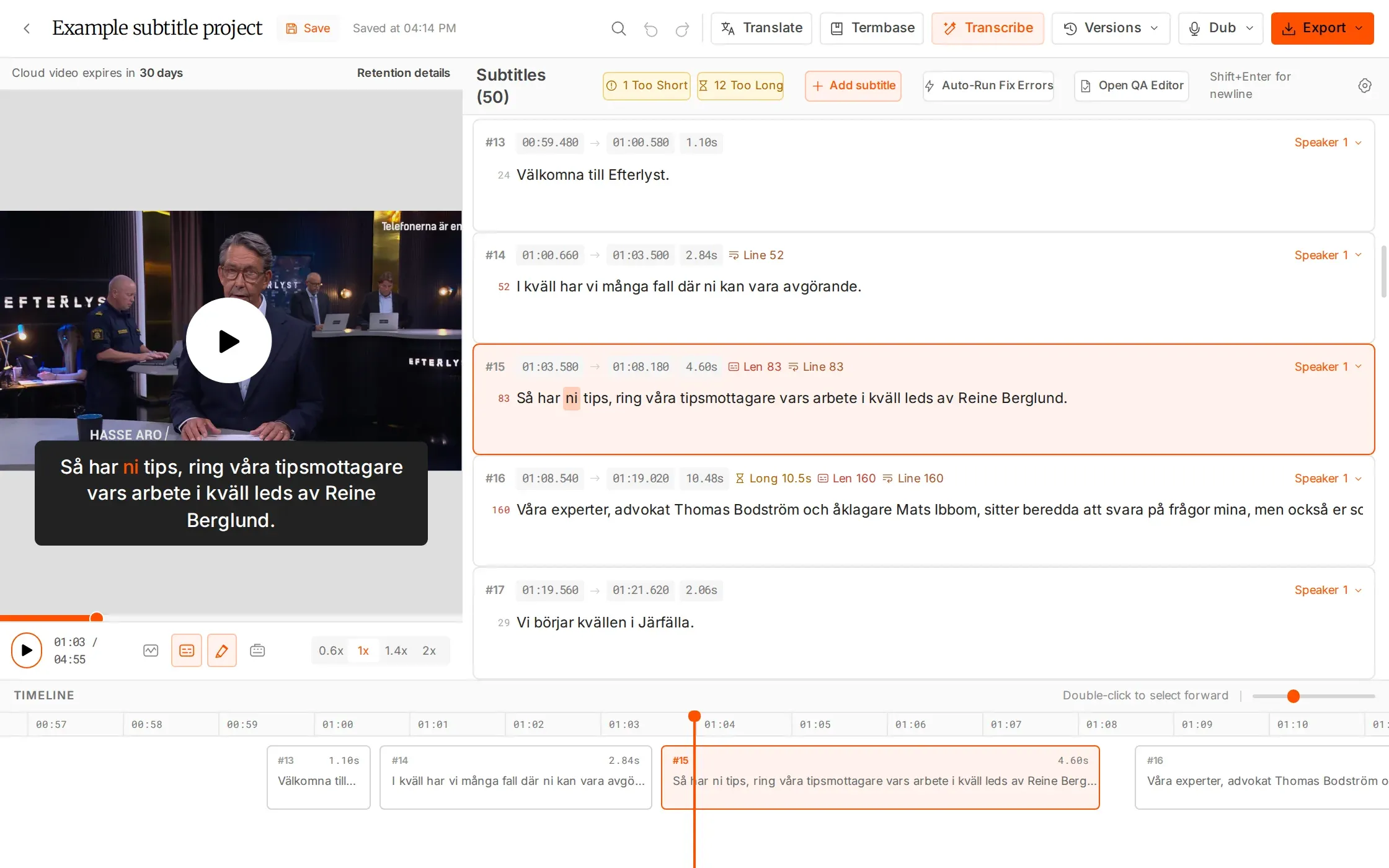
Precision without the extra handoff.
Stay with the video. Move through the details quickly.
Control timing precisely
Zoom the waveform, drag to retime and snap to the playhead. Shift multiple subtitles or nudge one by 100 ms.
Read in context
View captions on the video, follow word-by-word highlighting and adjust playback from 0.2× to 2×.
Move through the edit
Split, merge, add or delete subtitles. Use shortcuts, undo/redo, find and replace, and per-line character counts.
WHAT YOU CAN DO
Make the small edits that make a subtitle work.
Place each subtitle against the audio
Zoom the waveform, drag subtitle boundaries and snap to the playhead. Nudge a single subtitle by 100 ms or shift several together, so you can correct a local timing issue or move a whole passage consistently.
Shape the text for the screen
Split, merge, add or delete subtitles and insert line breaks. Per-line character counts help you judge the structure while you work, instead of discovering an overlong line only at the end of the file.
Review at the pace the passage needs
Watch captions on the video and follow word-by-word highlighting. Change playback speed from 0.2× to 2× to inspect a difficult phrase closely or move through a familiar section more quickly.
Handle repeated changes efficiently
Use keyboard shortcuts, undo and redo, and find and replace for recurring edits. The “find between” mode targets text between markers such as brackets, helping you work through a consistent change across the subtitle file.
HOW IT WORKS
See it. Hear it. Refine it.
Keep language decisions and timing decisions in the same review.
Open the version
Choose the language and version you need from the project.
Shape words and timing
Use the waveform and picture to adjust text, line breaks and subtitle boundaries.
Check and pass it on
Run QC, share the version for review or export the file for your delivery workflow.
IN YOUR WORKFLOW
Stay close to the picture through the final pass.
A language version is ready for refinement
Open the translated version, adjust the wording to fit the scene and reshape lines that read awkwardly. Use the picture, waveform and QC flags to check the finished subtitle as a viewer will encounter it.
WHY IT HELPS
Make language, timing and readability decisions in the same place.
An inherited SRT has local timing problems
Import the file, locate the affected passage and shift the relevant subtitles together. Nudge individual boundaries, replay the passage and check the changes before exporting.
WHY IT HELPS
Repair specific sections while keeping the rest of the subtitle work available.
Manual editing, QC and export are free. One person edits a version at a time; collaborators see changes live and can take over when it is free.
FAQS
Have questions? Find answers.
Have more questions?
Reach out to our friendly support team
Can I retime several subtitles together?
Yes. Shift the timing of multiple subtitles at once, or nudge a single subtitle by 100 ms.
What playback controls are available?
Playback speed ranges from 0.2× to 2×. The player shows captions and word-by-word highlighting.
Can I change subtitle structure?
Yes. Split, merge, add and delete subtitles, and insert line breaks.
Is there a find and replace tool?
Yes. Find and replace includes a “find between” mode for editing text between markers such as brackets.
Can several people type at the same time?
One person edits a version at a time. Other collaborators see changes live and can take over when the version is free.
Does editing use AI hours?
No. Manual editing, QC, Re-split and export are free.
Keep your editors close to the picture.
Editing is free in clipsubs. Your AI hours stay available for processing.